Local face swap software for PC and Mac: what to compare in 2026
A local app can keep source videos off a third-party upload queue, but “local,” “offline,” “open source,” and “easy to install” are not the same promise. This guide separates them.
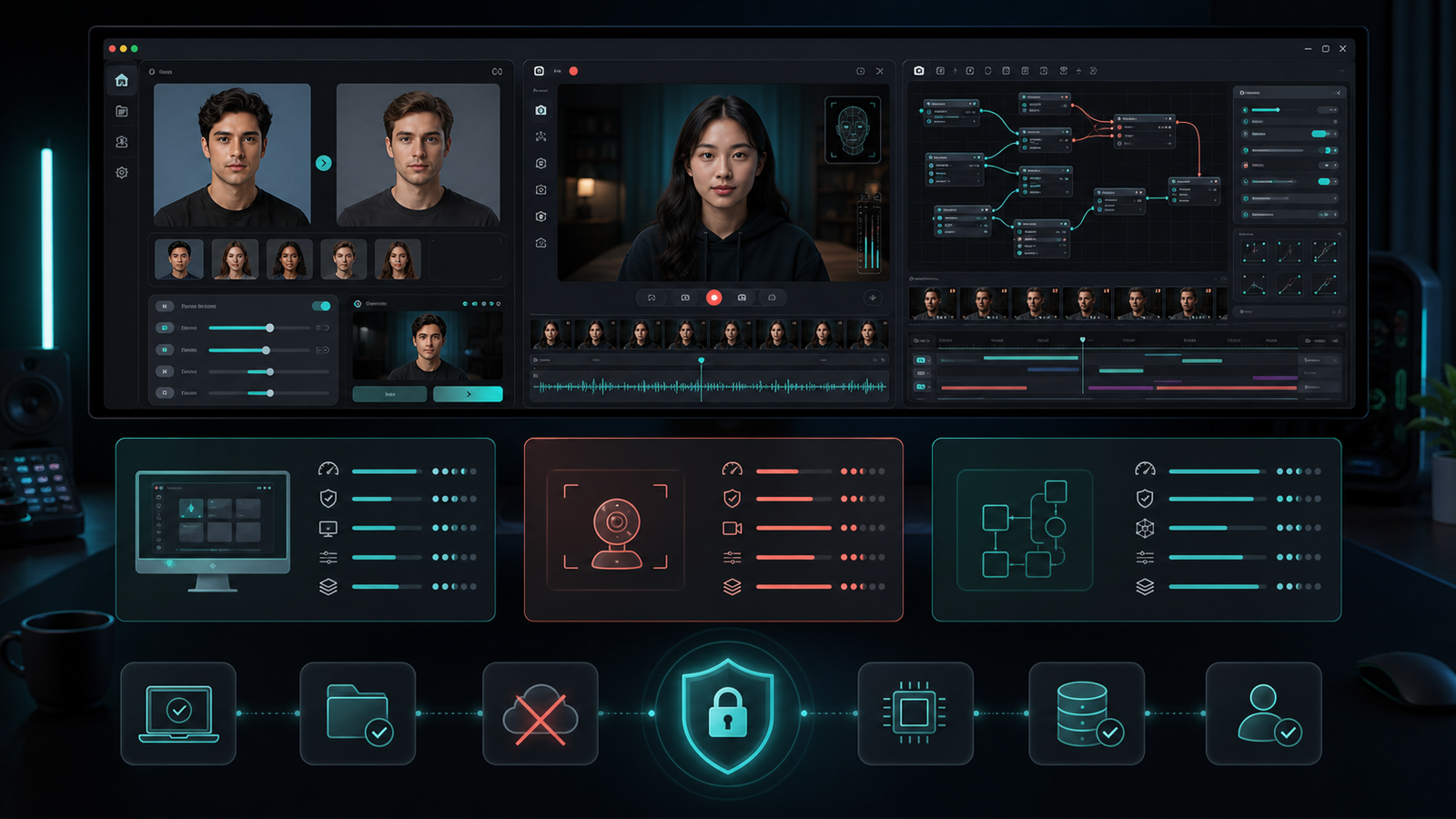
The first difficult choice is usually not the face model. It is the product shape. A browser tool asks you to upload media. A local face swap app processes frames on your computer. A training package gives you deeper control but turns the job into a longer technical project. A live-first tool is optimized for a webcam rather than a finished video.
Start with the workflow you need to repeat. Then compare privacy boundaries, operating-system support, model downloads, hardware acceleration, preview controls, and the amount of installation work your team can maintain.
Quick recommendation
Choose a focused desktop app for repeatable image, video, and camera swaps. Choose a live-first app for streams and calls. Choose a training-oriented open-source package only when custom model work justifies the additional setup and iteration time.
Versions, evidence and a repeatable workflow
Documentation reviewed October 5, 2026. Deep Face Cam installer names refer to the v0.1.0 package previously checked on September 23, 2026; confirm the current Patreon post before choosing a file. These are setup comparisons, not measured speed or image-quality rankings.
Start with your task: one-photo swaps and repeatable file exports, a live camera pipeline, or a trained identity model. Then filter by OS and GPU. Deep Live Cam offers source and pre-built routes; DeepFaceLive documents portable Windows builds and is archived upstream. Check FaceFusion’s platform-specific installation separately.
Use the Deep Face Cam installer table for this site’s paid package. Source-code availability and paid packaging are different choices; compare current access conditions, maintenance and the workflow you actually need.
Try the same short clip before choosing
- Use a 5–10 second clip you have permission to edit, with a front-facing subject turning to profile. Keep resolution and frame rate unchanged.
- Select the correct CPU or GPU backend. Let the first model download finish; keep that initial setup time separate from processing time.
- Preview and export with enhancement off first. Inspect side profiles, glasses, occlusion and mouth movement, then repeat with enhancement if needed.
- For live use, check the selected camera, preview latency and the receiving application separately. Successful file export does not prove a working virtual-camera route.
Record the app version, installer, OS, GPU/driver, model, input duration and resolution, enhancement settings, preview time, export time and any failure. No controlled device timing was collected for this article.
See the existing Deep Face Cam output examples. These are product examples, not identical-input comparisons against another tool. Follow the local video workflow.
Local does not always mean fully offline
“Local processing” should mean that the source image, target video, camera frames, and rendered output are handled on your machine during the core workflow. It does not automatically mean the app never uses the network. A local tool may download model files on first run, open documentation, retrieve an installer, or check an update channel.
Before using private media, test the exact build you plan to use. Locate the model cache, output folder, temporary files, logs, and update settings. Deep Face Cam makes model downloads explicit and keeps the core media workflow local; its privacy page documents where network access can occur.
Seven criteria for comparing face swap software
- Media mode: photo, video, live camera, or all three.
- Product shape: desktop app, terminal toolkit, browser editor, or training pipeline.
- Privacy boundary: what stays local and what requires a network connection.
- Platform support: Windows, macOS, Linux, Apple silicon, and GPU backends.
- Setup cost: ready-to-run installer versus Python, drivers, models, and environment management.
- Review controls: preview, alignment, blending, enhancement, and representative-frame checks.
- Governance: source visibility, license, consent rules, disclosure, and maintenance status.
Local face swap software comparison
| Tool | Best fit | Desktop / platform notes | Setup profile |
|---|---|---|---|
| Deep Face Cam | Focused local image, video, and live camera workflow. | macOS 12+ and Windows 10/11; open-source Tauri and Python stack. | Public source plus supporter installers; model downloads require confirmation. |
| FaceFusion | Broader face manipulation and batch or headless jobs. | Official docs expose run, headless, batch, and job commands plus Windows and macOS installer paths. | Source installation is documented as technical; installers shorten the path. |
| Swapface | Real-time streams plus image and video face swaps. | Official downloads list Windows and Mac for Apple silicon. | Desktop-first, with a comparatively high recommended hardware profile. |
| Faceswap | Training-oriented open-source deepfake work. | Windows, macOS, and Linux; extraction, training, and conversion are separate stages. | More technical control and a longer learning path. |
| Deep Live Cam | Real-time camera swaps and one-click video workflows. | Open-source Python project with CPU, GPU, and platform-specific setup notes. | Manual installation requires technical skills; prebuilt options are offered separately. |
These products overlap, but they are not interchangeable. If you need a broader breakdown, read our Deep Face Cam vs FaceFusion and Deep Face Cam vs Deep Live Cam comparisons.
Choose a Deep Face Cam installer
The current Patreon post provides v0.1.0 installers. Select your processor and GPU backend before downloading.
| Your computer | Installer |
|---|---|
| Mac: Apple M-series | Apple Silicon (aarch64) · DMG |
| Mac: Intel | Intel (x64) · DMG |
| Windows: NVIDIA GPU | NVIDIA CUDA · MSI |
| Windows: compatible AMD / Intel GPU | DirectML · MSI |
| Windows: CPU fallback | CPU · MSI |
Install and test a short clip
- Open the matching DMG or MSI. On Mac, copy the app to Applications; on Windows, follow the installer.
- These early builds are unsigned. Check the source and read the operating-system prompt before deciding whether to open the app.
- Review and confirm first-run model downloads. Keep space for models and exports; initial setup requires internet access.
- Import a face and a short target clip, check the preview, then export or test live mode.
What PC and Mac users should check
Windows
Confirm whether the build targets CPU, DirectML, CUDA, or another acceleration path. A label such as “Windows supported” does not guarantee that every GPU path is packaged the same way. Check driver requirements, installer signing, model size, and available disk space before importing a long video.
macOS
Check whether the app supports Apple silicon, Intel, or both. Also verify minimum macOS version, signing and notarization status, model conversion behavior, and whether the backend is bundled or expects a separate Python environment.
Choose by workflow, not by feature count
- Short product video: prioritize fast preview, representative-frame review, and predictable export.
- Live stream or video call: prioritize latency, camera routing, mouth and mask behavior, and recovery when tracking fails.
- Custom model research: prioritize training controls, datasets, reproducibility, and hardware monitoring.
- Team handoff: prioritize installers, clear storage paths, a narrow interface, and documented privacy behavior.
Privacy and responsible-use checklist
- Use only your own media or material with clear permission from identifiable people.
- Record where models, previews, temporary frames, logs, and exports are stored.
- Do not assume “offline” until you test first-run and update behavior.
- Keep originals separate from generated output and label altered media when shared.
- Never use face swap software for impersonation, fraud, identity checks, harassment, or non-consensual intimate imagery.
FAQ
What is the best face swap software for PC?
For repeatable photo and video work, start with a focused desktop app. For streaming, use a live-first tool. For custom training and research, use a package built around extraction, training, and conversion. “Best” depends on the workflow and the amount of technical maintenance you accept.
Can face swap software run fully offline?
Core processing can run locally, but initial model downloads, installer retrieval, links, or updates may need a connection. Verify the exact build rather than relying on a broad marketing label.
Is open-source face swap software automatically safer?
Public source improves auditability, but it does not replace safe defaults, responsible operators, secure packaging, or a review of model and network behavior.
Try the focused local desktop workflow
Use Deep Face Cam for image, video, and live camera swaps with local preview and explicit model downloads.
Paid installers on Patreon. Review the post for access options, then choose the file for your system.Related guides
Once a tool is chosen, these guides cover the settings that actually decide the output:
- How to face swap a video locally on PC or Mac — the end-to-end workflow
- How to swap multiple faces in a video locally — mapping each person to their own source
- GFPGAN vs GPEN: which face enhancer should you use? — restoration models and their cost
- Real-time face swap on a local PC — capture, GPU backends, FPS, and privacy